> For the complete documentation index, see [llms.txt](https://docs.efento.io/llms.txt). Markdown versions of documentation pages are available by appending `.md` to page URLs; this page is available as [Markdown](https://docs.efento.io/efento-cloud/advanced/organization-settings/custom-measurement-types.md).
# Custom measurement types
Efento Cloud allows organizations to define **custom measurement types** to support non-standard sensors, proprietary measurement units, or any scenario where the default set of measurement types is insufficient.
Together with [Channel formulas](/efento-cloud/advanced/organization-settings/channel-formulas.md), this feature ensures that any type of sensor, standard or highly specialized, can be used within Efento Cloud while retaining full compatibility with all platform functionalities, including dashboards, alarm rules, automatic reports, APIs, and data exports. This provides complete freedom in configuring measurement logic while keeping the system consistent, accurate, and easy to interpret.
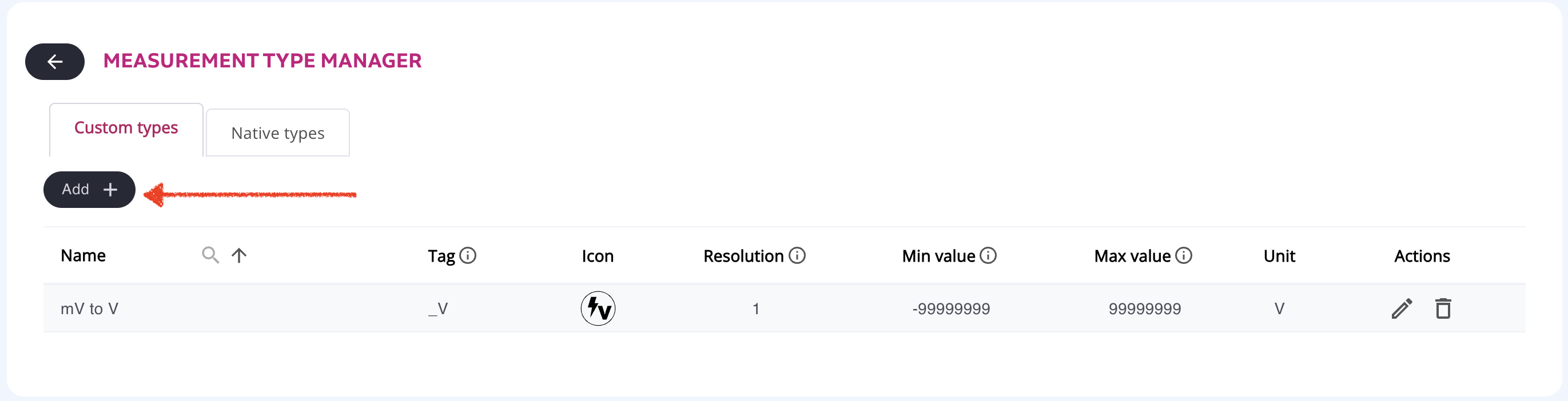
The configuration of custom measurement types is performed through the **Measurement Type Manager**, available in the **Organization Settings**. Only users with Administrator and Manager permissions can access and manage this section.

## **Adding a new measurement type**
Click the **Add +** button in the upper-left corner. A configuration window will appear.
{% stepper %}
{% step %}
### **Define basic information**
When creating a new measurement type, you must configure:
**Name**
* Enter a descriptive name that clearly identifies the measurement (e.g., "CO₂ Flow Rate", "Air Quality Index", "Custom Pressure").
* The name will be visible throughout the Cloud platform: dashboards, sensor views, reports, rules, etc.
**Tag**
* Assign a unique tag for internal communication.
* Tags are used by the **API, backend processes, and integration mechanisms**.
* All custom measurement type tags must start with an **underscore “\_”** (e.g., `_co2_flow`, `_custom_temp`).
* Tags must be unique across the organization—duplicates are not allowed.
**Icon (optional but recommended)**
* You may upload a custom icon that will visually represent the measurement type wherever it appears.
* Icons must be in **SVG format** for best scaling and clarity.
* Use **square-shaped icons** to ensure proper alignment in the interface.

{% endstep %}
{% step %}
#### **Configure measurement properties**
Efento Cloud allows you to define how values for this measurement type should be interpreted and displayed:
**Minimum and maximum range**
* Set the expected numerical range for this measurement type.
* If a sensor reports a value **outside this range** (after formula conversions), the measurement will be flagged with an error such as *“Value out of range”*.
* Range limits help maintain data quality and quickly detect sensor or configuration issues.
**Unit**
* Specify the unit used for displaying values (e.g., °C, %, mA, ppm, kPa).
* The unit will appear in dashboards, exports, charts, and reports.
**Resolution**
* Define the number of decimal places shown for measurements.
* This setting helps ensure that values are displayed with the appropriate precision (e.g., whole numbers - 0, one decimal place - 1, etc.).

Once a custom measurement type is created, it becomes fully available across the entire organization. You can now use it in it [channel conversion formulas](/efento-cloud/advanced/organization-settings/channel-formulas.md).
{% endstep %}
{% endstepper %}
## **Managing custom measurement types**
#### **Editing**
Existing custom measurement types can be edited by selecting the **pencil icon**:
* Adjust names
* Change units
* Update icons
* Modify ranges and resolution
However, **modifying tags is not possible**, as they are tied to API integrations and formulas.
#### **Deleting**
Custom measurement types can only be deleted when no sensor channels are using them.\
If a measurement type is still assigned anywhere in the system, you must first detach it (e.g., change formulas or measurement types for the affected channels).
---
# Agent Instructions
This documentation is published with GitBook. GitBook is the documentation platform designed so that both humans and AI agents can read, navigate, and reason over technical content effectively. Learn more at gitbook.com.
## Querying This Documentation
If you need additional information that is not directly available in this page, you can query the documentation dynamically by asking a question.
Perform an HTTP GET request on the current page URL with the `ask` query parameter, and the optional `goal` query parameter:
```
GET https://docs.efento.io/efento-cloud/advanced/organization-settings/custom-measurement-types.md?ask=&goal=
```
`ask` is the immediate question: it should be specific, self-contained, and written in natural language.
`goal` is optional and describes the broader end goal you are ultimately trying to accomplish on behalf of the user. GitBook uses it to tailor the answer towards what is most useful for that goal.
The response will contain a direct answer to the question and relevant excerpts and sources from the documentation.
Use this mechanism when the answer is not explicitly present in the current page, you need clarification or additional context, or you want to retrieve related documentation sections.