> For the complete documentation index, see [llms.txt](https://docs.efento.io/llms.txt). Markdown versions of documentation pages are available by appending `.md` to page URLs; this page is available as [Markdown](https://docs.efento.io/efento-cloud/getting-started/first-steps.md).
# First steps
Once your [**Efento Cloud account** ](/efento-cloud/getting-started/quickstart.md)has been created, you can begin setting up your monitoring system. Efento Cloud includes a built-in **onboarding process** that guides you through each required step to configure your installation. Follow the instructions in sequence to ensure your system is configured quickly, correctly, and conveniently.
{% hint style="info" %}
The onboarding process in Efento Cloud can be completed using either a **web browser** or the **Efento mobile application**. For the best and most seamless experience, we recommend using the **mobile app**. Please note that certain configuration steps, such as [adding **NB-IoT sensors**](/efento-cloud/adding-devices/nb-iot-loggers.md) or [configuring an **LTE Gateway**](/efento-cloud/adding-devices/bluetooth-low-energy-loggers/publish-your-docs.md), can only be performed through the mobile application.
{% endhint %}
{% stepper %}
{% step %}
### Create your Organisation
Efento Cloud uses a **multi-tenant architecture**, where each **Organisation** functions as an independent, isolated workspace. All measurement data, users, and configuration settings are stored **exclusively within that Organisation**, and no users outside of it can access its data.
Organisations make it possible to share sensor data with multiple users, create a structured hierarchy of locations for organising sensors, and assign **view** or **modify** permissions for individual locations to selected users.
During onboarding, you will be prompted to **create and name your Organisation**. As the owner, you receive full administrative rights, including the ability to invite additional users and configure sensors.
Select Organisation name and click **Next**.
{% endstep %}
{% step %}
### Select how would you prefer to configure your devices
Efento Cloud supports both **Bluetooth Low Energy (BLE) sensors** and **NB-IoT sensors**, and the configuration process depends on the type of devices and gateways you are using. Before proceeding, please identify the hardware installed in your system and select the appropriate configuration method:
* **NB-IoT sensors or Bluetooth–LTE Gateway:**\
The recommended and most convenient method is to configure these devices using the **Efento mobile application**.
* **Bluetooth–Ethernet Gateway:**\
Configuration can be performed either through the **Efento mobile application** or via a **web browser**. For ease of use and reliability, we recommend using the **mobile application**.
Please select the type of devices and gateway you are using and fpress **Next**.
{% endstep %}
{% step %}
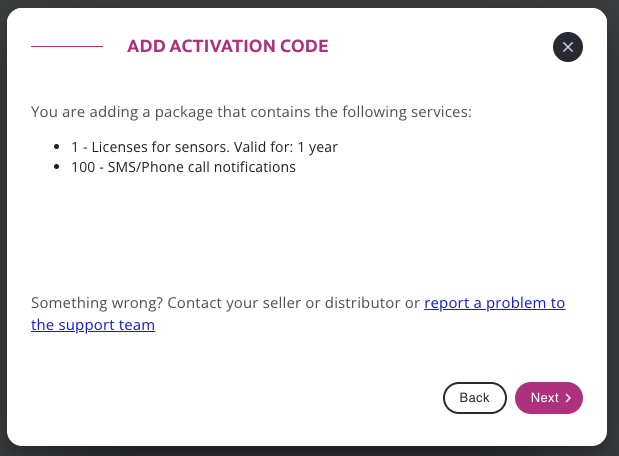
### Add activation code
An **Activation Code** is used in Efento Cloud to add the services and resources purchased for your Organisation. Entering a valid activation code assigns the corresponding service packages to your account. Depending on the purchased plan, an activation code may include:
* **Sensor licences** – allow you to add a specified number of sensors for a defined time period.
* **NB-IoT and/or LTE SIM activation licences** – required to activate and use SIM cards with NB-IoT or LTE gateways.
* **Notification credits** – used for sending SMS messages or initiating phone call alerts.
After entering the activation code, the assigned services become immediately available for use within your Organisation.
After the activation code is entered, the system will display a summary of all services included in the code. Review this information and click **Next** to confirm and add the services to your Organisation. If anything appears incorrect or unexpected in the list, please contact our support team at [**help.efento.io**](https://help.efento.io) before proceeding.
{% endstep %}
{% step %}
### Add your phone number
Efento Cloud allows users to receive **SMS** and **phone call notifications**. To enable these features, you must add a valid phone number to your account. You can provide your phone number during the onboarding process or add it later at any time from the **Profile Settings** section.
After entering your phone number, click **Send code**. A code will be sent via SMS; enter this code in the verification field to confirm your number. Once the number is successfully verified, click **Next** to continue.
If you do not wish to add a phone number at this stage, select **Skip** to proceed without enabling phone-based notifications.
{% endstep %}
{% step %}
### Add your devices
Configure your devices to add them to the Efento Cloud platform by following the **on-screen instructions** provided during the onboarding / setup process. If you require additional guidance, this user manual includes detailed instructions for adding each device type: the [**LTE Gateway**](/efento-cloud/adding-devices/bluetooth-low-energy-loggers/publish-your-docs.md), the [**Ethernet Gateway**](/efento-cloud/adding-devices/bluetooth-low-energy-loggers/publish-your-docs-1.md), and [**NB-IoT sensors**](/efento-cloud/adding-devices/nb-iot-loggers.md). Refer to the relevant section for step-by-step assistance.
{% endstep %}
{% endstepper %}
Once the onboarding process is finished, your Efento Cloud environment is ready for further configuration. You can now proceed with the next steps, such as **adding additional users**, **setting up alarm rules**, **creating and managing locations**, or **configuring integrations** with other systems. At this stage, you can also configure **automatic reports**, allowing the platform to generate and send scheduled measurement reports directly to selected recipients. These options allow you to tailor the platform to your monitoring needs and fully prepare your Organisation for operation.
{% content-ref url="/pages/AD9lDCmpddI5WAY92HgG" %}
[Alarm rules](/efento-cloud/advanced/markdown.md)
{% endcontent-ref %}
{% content-ref url="/pages/i73g4LZQanoLj7XtSO18" %}
[Access - Users / API tokens](/efento-cloud/advanced/editor.md)
{% endcontent-ref %}
{% content-ref url="/pages/uVoaf7yBkCD7hAsYfsVY" %}
[Locations](/efento-cloud/advanced/locations.md)
{% endcontent-ref %}
{% content-ref url="/pages/qpmduGHeXmasfrhkAqYv" %}
[Integrations](/efento-cloud/advanced/organization-settings/integrations.md)
{% endcontent-ref %}
{% content-ref url="/pages/ItXdhQB2ph7aPxKzqehw" %}
[Automatic reports](/efento-cloud/advanced/automatic-reports.md)
{% endcontent-ref %}
---
# Agent Instructions
This documentation is published with GitBook. GitBook is the documentation platform designed so that both humans and AI agents can read, navigate, and reason over technical content effectively. Learn more at gitbook.com.
## Querying This Documentation
If you need additional information that is not directly available in this page, you can query the documentation dynamically by asking a question.
Perform an HTTP GET request on the current page URL with the `ask` query parameter, and the optional `goal` query parameter:
```
GET https://docs.efento.io/efento-cloud/getting-started/first-steps.md?ask=&goal=
```
`ask` is the immediate question: it should be specific, self-contained, and written in natural language.
`goal` is optional and describes the broader end goal you are ultimately trying to accomplish on behalf of the user. GitBook uses it to tailor the answer towards what is most useful for that goal.
The response will contain a direct answer to the question and relevant excerpts and sources from the documentation.
Use this mechanism when the answer is not explicitly present in the current page, you need clarification or additional context, or you want to retrieve related documentation sections.