> For the complete documentation index, see [llms.txt](https://docs.efento.io/llms.txt). Markdown versions of documentation pages are available by appending `.md` to page URLs; this page is available as [Markdown](https://docs.efento.io/efento-cloud/integrations/slack-integration.md).
# Slack integration
Integrating Efento Cloud with Slack enables your team to receive real-time alerts directly in the communication channels you use every day. This seamless ensures that important information reaches the right people instantly, without the need to constantly monitor dashboards or emails. By automating notifications through Slack, teams can respond to issues faster, improve collaboration across departments, and maintain full visibility into environmental and operational data within Efento Cloud - all while keeping communication streamlined and efficient.
### Before you start
To integrate Slack with Efento Cloud you will require:
* **Slack account and Slack workspace** either paid or free account
* Efento Cloud account with **Administrator** permission to the selected organisation
### Slack configuration
{% stepper %}
{% step %}
#### Create a Slack app
1. **Log in** to your Slack account
2. Go to [Slack API: Your Apps](https://api.slack.com/apps)
3. Click **Create New App**
4. Choose **From scratch**
5. Enter an app name (e.g. `Efento Cloud notification bot`) and select the workspace
6. Click **Create App**
{% endstep %}
{% step %}
#### Configure bot permissions
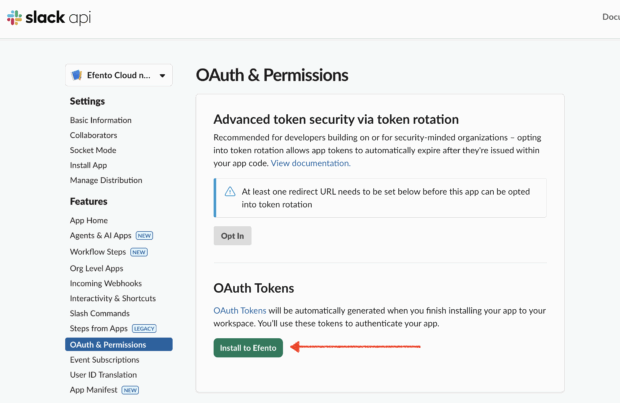
1. In the left-hand menu, go to **OAuth & Permissions**
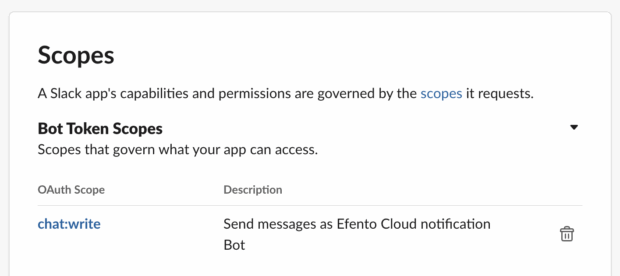
2. Scroll down to **Scopes** section and under **Bot Token Scopes**, click **Add an OAuth Scope** and add permission to `chat:write`
3. If you wish, you can customise bot’s appearance. In the left-hand menu, go to **Basic Information** and scroll down to **Display Information** section. Set colour, app icon and descriptions and save changes
{% endstep %}
{% step %}
#### Install the app to your workspace
1. Scroll to the top of the page and press **Install to Workspace** button
2. Authorise the requested permissions
3. After installation, copy the **Bot User OAuth Token** (starts with `xoxb-...`)
{% endstep %}
{% step %}
#### Invite the bot to a channel
1. Open Slack (web or desktop)
2. Navigate to the desired channel (e.g., `#general`)
3. Type `/invite @YourBotName` and press Enter
4. The bot must be a member of the channel to post messages
{% endstep %}
{% step %}
#### Copy the channel ID / name
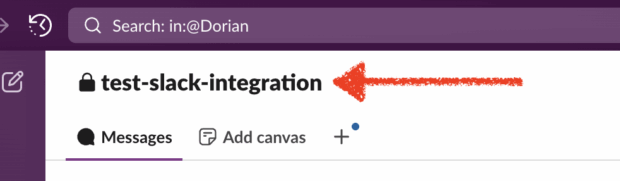
1. Click on the channel name
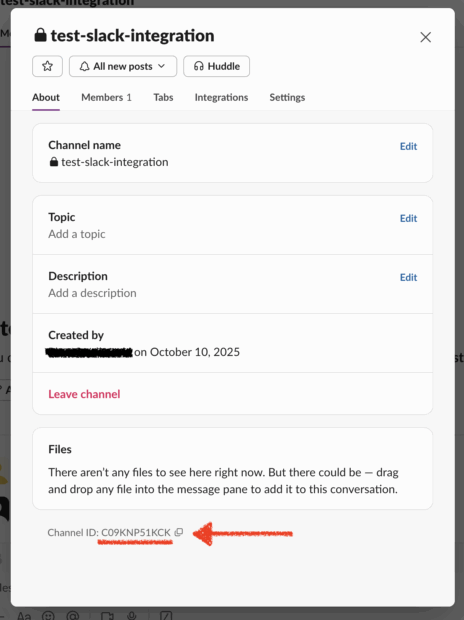
2. Copy the channel ID
{% hint style="info" %}
You can also use the **Channel name** for the integration. However, using the **Channel ID** is more reliable, as it remains constant. If you choose to use the channel name and it’s later changed by someone in your workspace, the integration will stop working.
{% endhint %}
{% endstep %}
{% endstepper %}
### Efento Cloud configuration
{% stepper %}
{% step %}
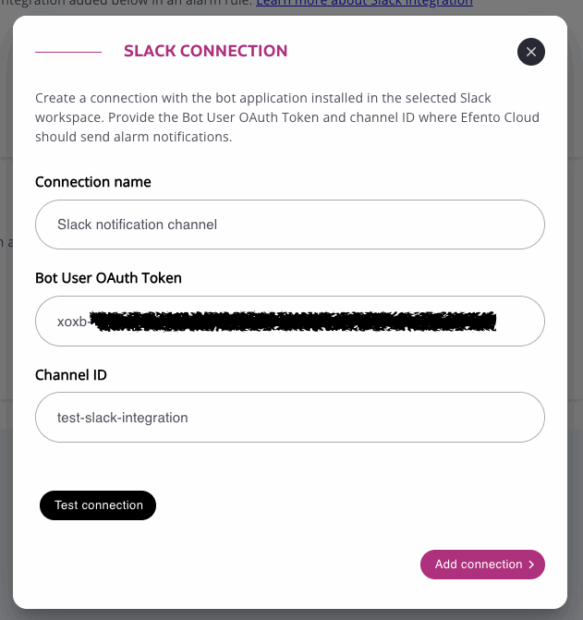
### Create a new Slack connection
1. In the left-hand menu go to **Settings** (gear icon) and **Organisation settings**
2. Navigate to **Integrations**
3. In the Slack section click the **Add new Connection** button
4. Set connection parameters by:
1. Adding connection name (e.g. Slack integration channel)
2. Pasting the **Bot User OAuth Token** (starts with `xoxb-...`) (this is the token you have copied in step 3 in the ‘Install the app to your workspace’ section of Slack configuration)
3. Entering the channel ID / name (step 1 in the ‘Copy the channel ID’ section of Slack configuration)
5. Click the **Test connection** button. If the connection is successful, you will see a test message in your Slack channel.
If no message is received, verify if:
* The bot has been invited to the channel
* The token and channel ID are correct
* The app has the necessary permissions
* Save the connection by clicking **Add connection**
{% endstep %}
{% step %}
#### Enable Slack notifications for selected rule(s)
1. In the left-hand menu go to **Settings** (gear icon) and **Rules and notifications**
2. Select rule name and parameters and press the **Next** button
3. Select sensors / location to which the rule will be assigned and press the **Next** button
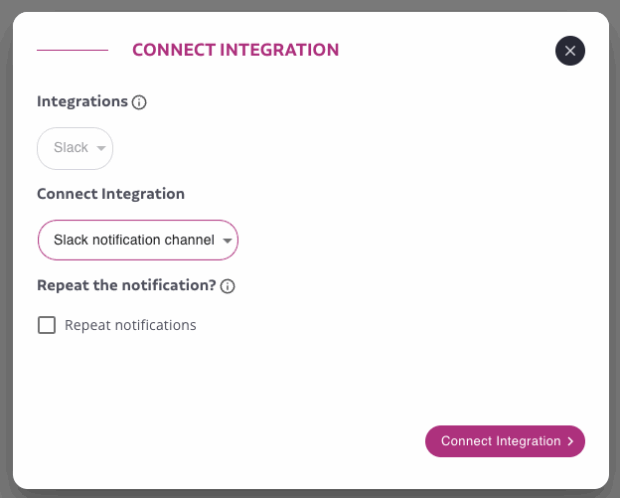
4. In the **Notifications** section press the **Connect integration** button
5. In the **Integrations** drop down menu select **Slack** and in the **Connect Integration** drop down select the name of the added integration. Press the **Connect Integration** button and save changes. From now on, if the rule is triggered, you will receive the integration to the selected Slack channel
{% endstep %}
{% endstepper %}
{% hint style="info" %}
Please note the following:
* You can **reuse a single integration across multiple rules**. Simply create several rules and select the same connection for each. With this setup, if any of the rules are triggered, the bot will send messages to the same Slack channel.
* You can use **one Slack bot to send notifications to multiple channels**. To do this, create additional integrations in the Organisation settings, using the same Bot User OAuth Token but different Slack Channel IDs.
* This integration allows Efento Cloud to send notifications to both **public and private Slack channels**, but it does **not support sending direct (private) messages** to individual users in your workspace.
{% endhint %}
---
# Agent Instructions
This documentation is published with GitBook. GitBook is the documentation platform designed so that both humans and AI agents can read, navigate, and reason over technical content effectively. Learn more at gitbook.com.
## Querying This Documentation
If you need additional information that is not directly available in this page, you can query the documentation dynamically by asking a question.
Perform an HTTP GET request on the current page URL with the `ask` query parameter, and the optional `goal` query parameter:
```
GET https://docs.efento.io/efento-cloud/integrations/slack-integration.md?ask=&goal=
```
`ask` is the immediate question: it should be specific, self-contained, and written in natural language.
`goal` is optional and describes the broader end goal you are ultimately trying to accomplish on behalf of the user. GitBook uses it to tailor the answer towards what is most useful for that goal.
The response will contain a direct answer to the question and relevant excerpts and sources from the documentation.
Use this mechanism when the answer is not explicitly present in the current page, you need clarification or additional context, or you want to retrieve related documentation sections.