> For the complete documentation index, see [llms.txt](https://docs.efento.io/llms.txt). Markdown versions of documentation pages are available by appending `.md` to page URLs; this page is available as [Markdown](https://docs.efento.io/efento-cloud/basics/sensor-details.md).
# Sensor details
Clicking a sensor on the **Dashboard** or **Location Map** opens the **Sensor Details** view. This section is available to **all users**, regardless of permission level (Administrator, Manager, Analyst). It provides access to:
* Alarm history with timestamps
* Measurement data in both chart and table formats
* Downloadable calibration certificate (if available)
* Exporting measurements as PDF (chart or table) or CSV
* Viewing basic device information such as:
* Sensor name and serial number
* Assigned location
* Last and next measurement timestamps
* Measurement interval
In the top-right corner of the Sensor Details page, three function buttons may appear:
* **Calibration certificate** – Download the sensor’s calibration certificate. Displayed only for sensors that have one.
* **Generate report** – Create a custom report for any chosen timeframe in PDF (chart/table) or CSV format. Reports are delivered to your email within minutes.
* **Edit sensor** – Available **only to Administrators and Managers**. Analysts can view sensor details, but cannot make changes.

## **Sensor Data Tabs**
Sensor data is organised into five tabs for easy navigation:
### **Live Metrics**
Shows measurements from the previous day, separated by channel. Charts provide a quick overview of the most recent data.
### **History**
Displays historical measurement charts with channel selection checkboxes.
* Use the date picker to specify the time range.
* Zoom in by selecting a region on the chart.
* Use the **Zoom Out** (four-arrow) button to reset the view.
* If alarm rules are configured, threshold lines appear on the chart (red = upper limit, blue = lower limit), each labelled with its rule name.

### **Measurements**
Shows all readings in a table.
* Minimum, maximum, and average values for the selected timeframe appear at the top.
* Adjust the time range using the date picker.
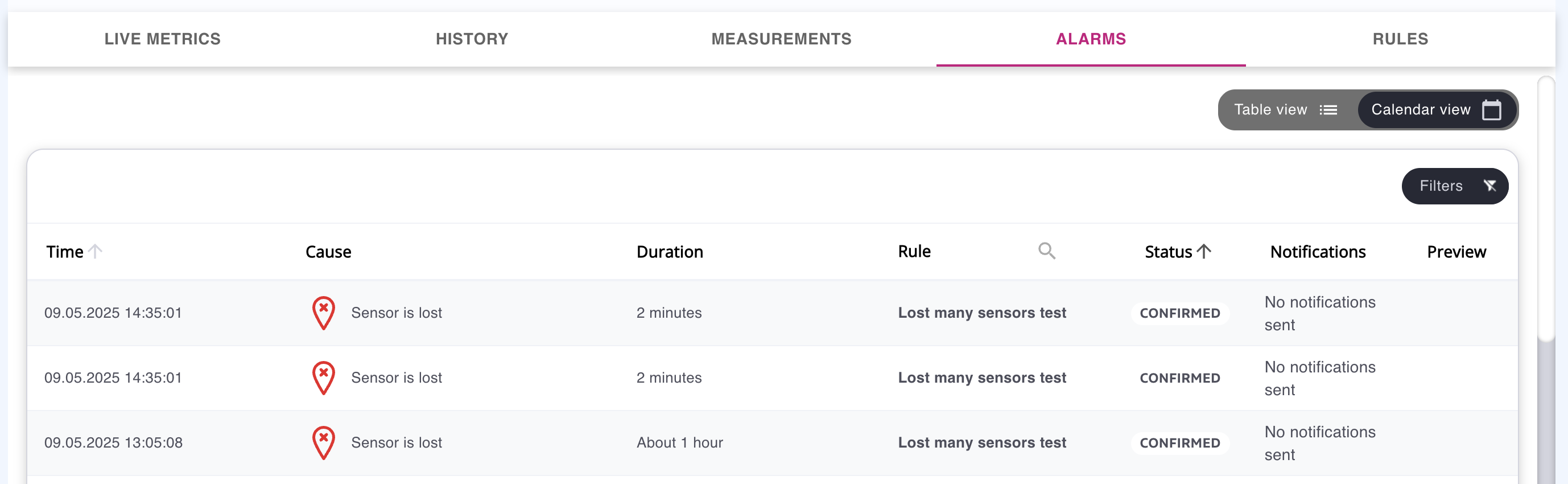
### **Alarms**
Lists all alarms triggered by the sensor with timestamps and rule names.
* Users can **acknowledge alarms** once values return to normal.
* View alarms in **Table view** or **Calendar view**. (For more details, refer to the [*Alarms*](/efento-cloud/basics/alarms.md) chapter.)
### **Rules**
Displays the alarm rules applied to this sensor. To learn how to add or remove a sensor from a rule, refer to the [*Alarm Rules*](/efento-cloud/advanced/markdown.md) section.
## **Edit Sensor menu**
The **Edit sensor** menu (available for Administrators and Managers only) provides tools for managing the selected device. The details of each of the actions are described in [*Sensor configuration*](/efento-cloud/advanced/editing-sensor-configuration.md) section.
Available actions include:
* [**Change location**](/efento-cloud/advanced/editing-sensor-configuration.md#location) – Move the sensor to a different location in the organisation structure.
* [**Rename**](/efento-cloud/advanced/editing-sensor-configuration.md#name) – Update the sensor’s display name.
* [**Formula settings**](/efento-cloud/advanced/editing-sensor-configuration.md#formula-settings) – Configure or edit formulas and custom measurement types (see [*Formulas*](broken://pages/x9zVgllFe45R0BzJ4W76) chapter).
* [**Swap device**](/efento-cloud/advanced/editing-sensor-configuration.md#swapping-a-sensor) – Swap the sensor for a new one while keeping its historical measurements.
* [**Calibration reminder**](/efento-cloud/advanced/editing-sensor-configuration.md#calibration-reminder) – Set or modify reminders for future calibration dates.
* [**Remote sensor configuration**](/efento-cloud/advanced/editing-sensor-configuration.md#remote-configuration-of-nb-iot-sensors) – Available for NB-IoT sensors only; allows changing technical parameters directly from the platform.
* [**Enable / disable sensor**](/efento-cloud/advanced/editing-sensor-configuration.md#disabling-enabling-sensors) – Temporarily deactivate or reactivate the sensor on the platform.
* [**Archive / delete sensor**](/efento-cloud/advanced/editing-sensor-configuration.md#archiving-deleting-measurements) – Archive the device to stop monitoring while preserving data, or permanently delete it from Efento Cloud.
---
# Agent Instructions
This documentation is published with GitBook. GitBook is the documentation platform designed so that both humans and AI agents can read, navigate, and reason over technical content effectively. Learn more at gitbook.com.
## Querying This Documentation
If you need additional information that is not directly available in this page, you can query the documentation dynamically by asking a question.
Perform an HTTP GET request on the current page URL with the `ask` query parameter, and the optional `goal` query parameter:
```
GET https://docs.efento.io/efento-cloud/basics/sensor-details.md?ask=&goal=
```
`ask` is the immediate question: it should be specific, self-contained, and written in natural language.
`goal` is optional and describes the broader end goal you are ultimately trying to accomplish on behalf of the user. GitBook uses it to tailor the answer towards what is most useful for that goal.
The response will contain a direct answer to the question and relevant excerpts and sources from the documentation.
Use this mechanism when the answer is not explicitly present in the current page, you need clarification or additional context, or you want to retrieve related documentation sections.