> For the complete documentation index, see [llms.txt](https://docs.efento.io/llms.txt). Markdown versions of documentation pages are available by appending `.md` to page URLs; this page is available as [Markdown](https://docs.efento.io/efento-cloud/advanced/markdown/gateway-rules.md).
# Gateway rules
### Status-based rules for gateways
Gateway rules in Efento Cloud enable you to monitor gateway statuses and automatically trigger alarms or notifications when specific conditions are met. These rules help ensure timely responses to critical events, improve system reliability, and allow for automated monitoring of your environment. Gateway rules are highly configurable, allowing you to define conditions, timing, recipients, and notification methods for each gateway or group of gateways.
All rule management options are available exclusively to users with **Administrator** or **Manager** permissions. Users with other roles can view alarms triggered by the rules but cannot access or modify the rules themselves.
## Types of gateway rules
Gateway rules can be triggered by several types of events, allowing you to monitor the operational status and health of your gateways. Each condition type serves a specific purpose and helps ensure continuous, reliable data transmission. The available rule conditions include:
* **Loss of connection with a gateway**\
Triggered when Efento Cloud does not receive data from the gateway within the expected timeframe. This may indicate network issues, hardware failure, or power outages. Use this rule to be alerted immediately when a gateway goes offline so you can restore connectivity as soon as possible.
* **Power source change in LTE gateways**\
LTE gateways are equipped with an internal backup battery. This rule is triggered when the device switches from the main power supply to the internal battery or back to main power. Such an alert helps you detect power interruptions or unstable electrical conditions in the monitored facility.
* **Low battery level in LTE gateways**\
Triggered when the gateway’s internal backup battery reaches a low charge level. Although the battery is intended only for temporary backup operation (up to 8 hours), monitoring its status ensures it remains functional during unexpected power outages. This rule helps you maintain gateway readiness and prevent data loss during power-related events.
These rule types allow you to closely track gateway behavior and respond quickly to any operational issues.
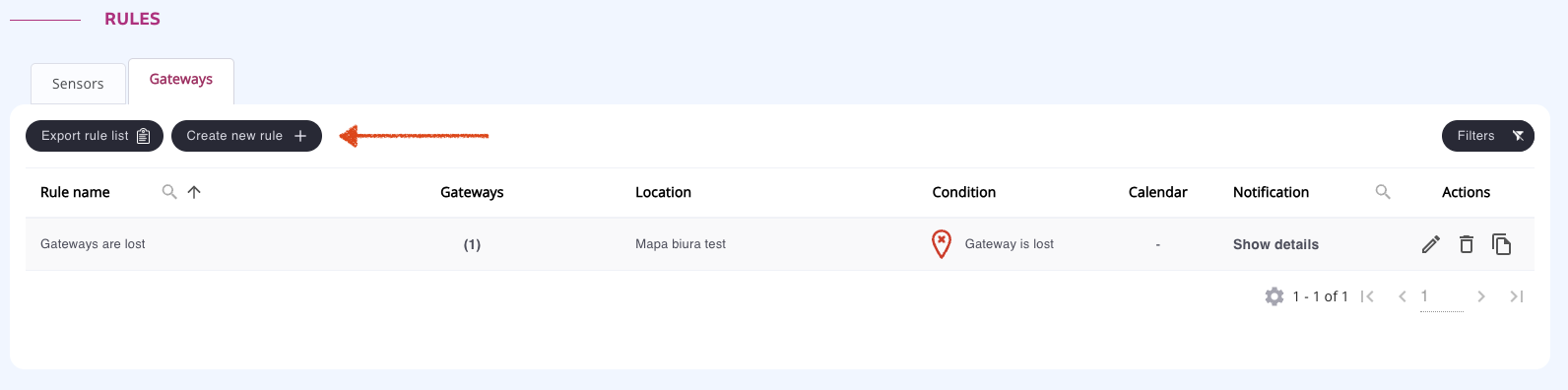
To set up an alert rule for gateways, select *Rules and notifications* from the main menu and navigate to the *Gateways* tab and select the *Add rule* button located in the upper left corner of the screen.
The configuration process for these alert rules mirrors the configuration of alert rules for sensor statuses. This includes the ability to configure identical notification channels (SMS, push, email, phone call, webhooks), calendars, delays, and alert repetition. Rules can be assigned either to specific gateways or to all gateways within selected locations.
## Creating a gateway rule
Creating a gateway rule involves defining the conditions that trigger the alarm and configuring how it should behave. This section explains the step-by-step process to ensure the rule works as intended. To create a new rule click **Create new rule** in the upper-left corner of the **Gateways** tab.
{% stepper %}
{% step %}
### Define conditions
1. Enter a **rule name** (up to 50 characters) to easily identify it later.
2. Select the **event type** (stimulus) for the alarm.
* Gateway is lost - triggered when Efento Cloud does not receive data from the gateway within the expected timeframe
* Gateway battery level is low (LTE gateways only) - triggered when the gateway’s internal backup battery reaches a low charge level.
* Power supply source has changed (LTE gateways only) - triggered when the device switches from the main power supply to the internal battery or back to main power.

{% hint style="info" %}
You may optionally configure a **delay** for evaluating the rule’s condition and/or l**imit the rule so that it is active only during selected time periods**. Click the expandable sections below to learn how to set these options.
{% endhint %}
Delay (optional )
Use the **delay feature** to avoid triggering alarms for short-term fluctuations. Check **Use delay in assessing the rule’s condition** and set a delay in minutes. The alarm will only trigger if the condition persists beyond this delay
Rule schedule (optional)
By default, every rule in Efento Cloud is active **24 hours a day, 7 days a week**. This means that any time the rule’s condition is met (regardless of day or hour) an alarm will be generated and notifications will be sent to assigned recipients.
However, in many real-world scenarios, you may want a rule to apply **only during specific time periods**. Examples include:
* Temperature monitoring required only during business hours
* Weekend-only supervision of storage areas
* Alarm rules that should be active outside working hours (e.g., "after-hours door opening")
* Rules that must be inactive during scheduled maintenance periods
The **Rule Schedule** feature allows you to precisely control *when* a rule is monitored and *when* notifications can be triggered.
**Enabling Scheduled Operation**
To limit a rule to specific days and times:
1. In the rule configuration window, check the box **Enable the rule only within the specified time ranges**.
2. A weekly table will appear, showing all days of the week and indicating when the rule is active.
3. Click **Add hours ranges** to define one or more time intervals during which the rule should operate.
**Defining Time Ranges**
When the **Add hours ranges** button is selected:
* Choose one or multiple days of the week.
* Define the time period during which the rule should be active (start and end hours).
* Click **Save** to add the interval.
**Multiple intervals per day are supported.**\
This allows precise scheduling for complex work patterns or shift-based operations. Examples:
* **Business-day monitoring:**
* Monday–Friday, 08:00–17:00
* **Out-of-hours monitoring:**
* Monday–Sunday, 00:00–08:00
* Monday–Sunday, 17:00–23:59
* **Shift-based activity:**
* Monday–Sunday: 06:00–14:00, 14:00–22:00
Each defined range appears as a removable "chip" under the selected day(s). To remove a range, click the **“X”** icon in the chip.
**How Scheduled Rules Work**
Once schedules are configured, Efento Cloud will:
* Trigger alarms only during active periods
* Send notifications only when the rule is active
* Ignore threshold breaches that occur outside scheduled time windows
* Automatically resume monitoring once the scheduled active period begins again
This prevents unnecessary alerts and ensures alarms are raised only when relevant for your operational requirements.
{% hint style="info" %}
**Important Notes**
* Scheduled rules apply to **all devices assigned to the rule**.
* If a rule is disabled due to scheduling and an alarm occurs outside active hours, it **will not be recorded** and **no notifications** will be sent.
* If a measurement exceeds a threshold just before the scheduled time period begins, the alarm will be triggered immediately once the rule becomes active.
* If you need rules active 24/7, leave scheduling disabled (default).
{% endhint %}
{% endstep %}
{% step %}
### Assign gateways
Once the rule is defined, you need to assign the gateways it applies to. This determines which devices will trigger the rule:
1. **Assign to all gateways in a location** – Automatically applies the rule to every gateway in the selected location, including gateways added in the future.
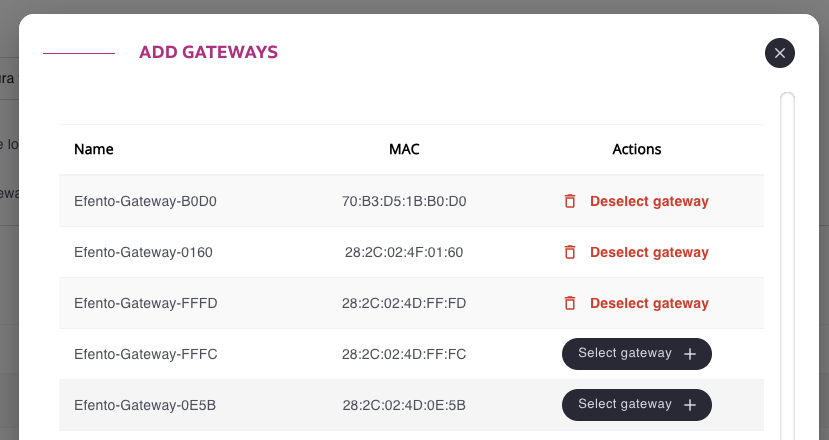
2. **Select individual gateways** – Allows you to choose specific gateways. Navigate to **Select devices**, click **Add gateways**, and select the desired devices. This method provides precise control for rules that apply only to certain devices.
Assigned gateways appear in the configuration summary. Remove sensors by clicking the **trash can icon**. Save the rule after assigning sensors. Existing rules can be modified anytime from the rule list.
{% endstep %}
{% step %}
### Select notification recipients
To ensure that alerts reach the right people, you must assign recipients for each rule. Efento Cloud provides multiple notification channels, allowing flexibility in how users are informed:
* **Email** – Sent to the user’s registered email address
* **Phone call** – Automatically calls the user (requires phone number in Profile)
* **SMS** – Sent to the user’s phone number (requires phone number in Profile)
* **Push notification** – Sent to users with the Efento mobile app
{% hint style="warning" %}
To use push notifications, the recipient must install [Efento mobile application for Android](https://play.google.com/store/apps/details?id=pl.efento.cloud\&hl=en) and log into their Efento Cloud account
{% endhint %}
To activate notifications, click **Add recipients** and select the desired users. For each recipient, click **Select recipient**, then **Save**. You can then define notification channels for each recipient by clicking **Add notifications** and configuring how and when they are notified:
* **Notification delay** – Stagger notifications for escalation purposes. For example, the first user receives a push notification immediately, and another user receives a phone call if the alarm persists.
* **Notification channels** – Choose one or multiple channels: email, SMS, phone call, push.
* **Notification repetitions** – Determine how often notifications are resent while the alarm remains active.

Multiple notifications can be added for the same user to create escalation workflows. **Email and push notifications are free**, while **SMS and phone call notifications** require a purchased message or call pool.
{% hint style="warning" %}
Phone call notification is repeated three times (5 minute gaps), if unanswered. If the user’s mobile phone is out of the network range or switched off they won’t get the notification. If the user has voicemail enabled, they also won’t be notified.
{% endhint %}
{% endstep %}
{% step %}
### (Optional) Add integrations
You can connect **Webhook** or **Slack** integrations to any alarm rule. When the rule is triggered, the platform will automatically send a message to the configured channel:
* [**Webhooks**](/efento-cloud/integrations/alert-webhooks.md) – Sends JSON data to a specified HTTP endpoint for third-party integration
* [**Slack**](/efento-cloud/integrations/slack-integration.md) – Sends messages to a Slack channel
To attach an integration to a rule, click **Connect integration**, choose the integration type (Slack or Webhook), and select the appropriate notification channel. If needed, you can also enable repeated notifications by checking **Repeat notifications** and defining how often the message should be resent while the rule remains active.
{% hint style="warning" %}
You must configure the integration in the [*Integrations*](/efento-cloud/integrations/measurement-webhooks.md) section before enabling it.
{% endhint %}
{% endstep %}
{% endstepper %}
---
# Agent Instructions
This documentation is published with GitBook. GitBook is the documentation platform designed so that both humans and AI agents can read, navigate, and reason over technical content effectively. Learn more at gitbook.com.
## Querying This Documentation
If you need additional information that is not directly available in this page, you can query the documentation dynamically by asking a question.
Perform an HTTP GET request on the current page URL with the `ask` query parameter, and the optional `goal` query parameter:
```
GET https://docs.efento.io/efento-cloud/advanced/markdown/gateway-rules.md?ask=&goal=
```
`ask` is the immediate question: it should be specific, self-contained, and written in natural language.
`goal` is optional and describes the broader end goal you are ultimately trying to accomplish on behalf of the user. GitBook uses it to tailor the answer towards what is most useful for that goal.
The response will contain a direct answer to the question and relevant excerpts and sources from the documentation.
Use this mechanism when the answer is not explicitly present in the current page, you need clarification or additional context, or you want to retrieve related documentation sections.