> For the complete documentation index, see [llms.txt](https://docs.efento.io/llms.txt). Markdown versions of documentation pages are available by appending `.md` to page URLs; this page is available as [Markdown](https://docs.efento.io/efento-gateways/lte-gateway/configuration-with-a-custom-server.md).
# Configuration with a custom server
o configure the Efento LTE Gateway to send data to a custom server, use the **free Efento mobile application for Android or iOS**.
{% stepper %}
{% step %}
### Place the gateway in its location
Place the gateway in its installation location.
{% hint style="info" %}
**Ensuring Good Signal Conditions**
To ensure optimal Bluetooth communication performance, consider the following recommendations when selecting the installation site for the gateway:
* Place the gateway in an open area, at least 1 meter above the ground.
* Avoid installing the gateway close to corners, or large metal surfaces that may block or reflect Bluetooth signals.
* Keep the gateway away from sources of electromagnetic interference such as Wi-Fi routers or industrial equipment.
* Avoid placing the gateway inside cabinets, enclosures, or behind objects that may reduce signal strength.
* If multiple gateways are used, maintain sufficient spacing between them to minimize mutual interference.
* After installation, verify Bluetooth signal quality and communication stability with all connected devices to confirm proper operation.
{% endhint %}
{% endstep %}
{% step %}
### Download the mobile application and go to *Nearby devices* mode
Download Efento mobile application for [Android](https://play.google.com/store/apps/details?id=pl.efento.cloud\&hl=en) or for [iOS](https://apps.apple.com/pl/app/efento/id6479740909). Select the option to use the mobile application with Nearby devices
{% endstep %}
{% step %}
### Enable configuration mode on the gateway
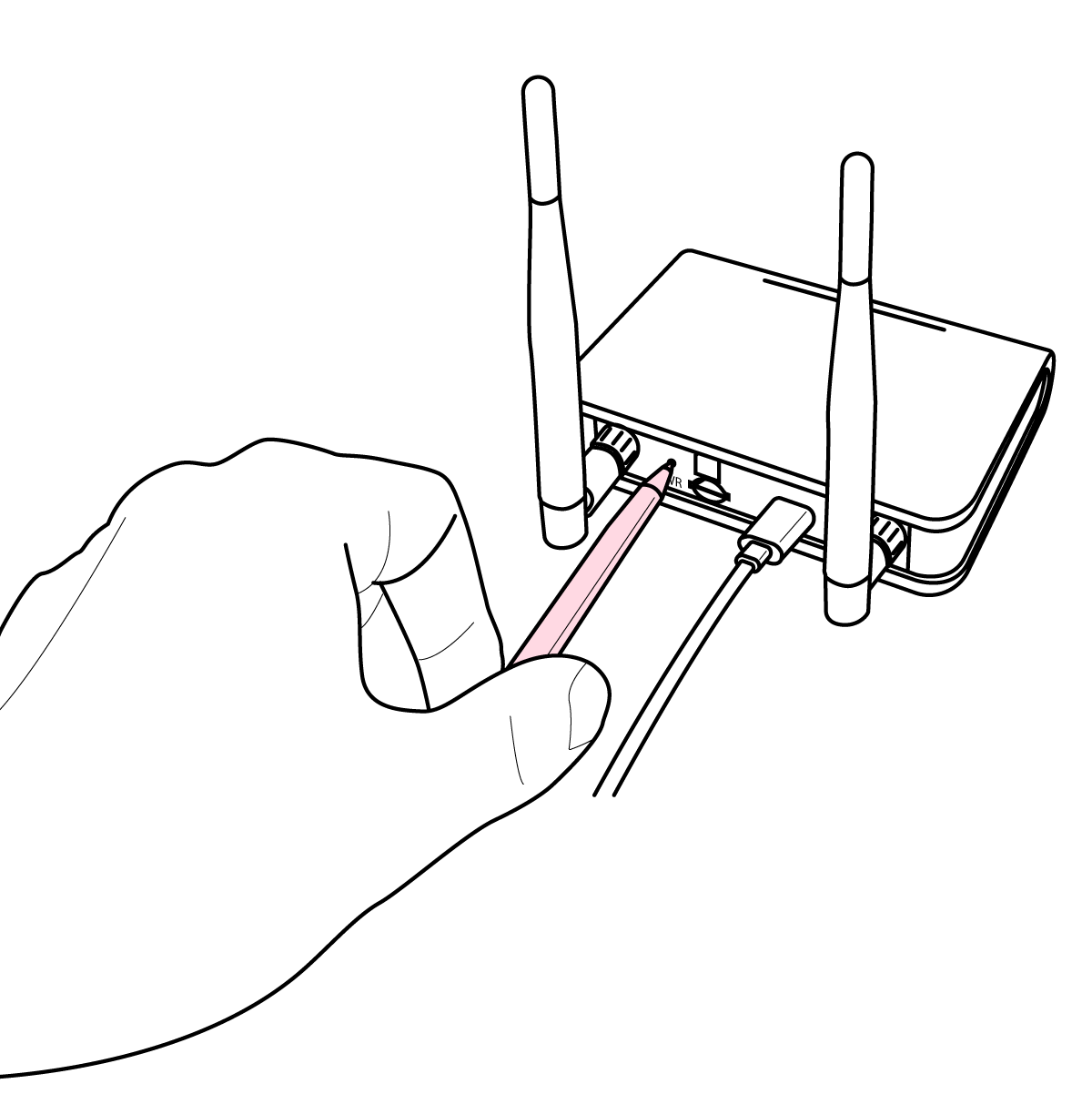
Press the button located on the **back panel** of the gateway **twice**.
{% endstep %}
{% step %}
### Connect to the Gateway
Tap the Gateway in the list to connect, then enter its password. You can find the password on the label attached to the bottom of the device.
{% endstep %}
{% step %}
### Configure the Gateway
The gateway’s configuration is split into five tabs (you can switch the tabs by selecting them from the upper bar):
**Network Parameters**:
1. **APN (Access Point Name)**: Enter the APN provided by your SIM card provider. If login and password are required, check “Use username and password,” or select “Automatic” to use the default APN.
2. **PLMN (Public Land Mobile Network)**: Enter the unique code for your mobile network or select “Obtain automatically.”
3. **DNS (Domain Name System)**: Set the address of the DNS server. By default it is set to 8.8.8.8
4. **NTP (Network Time Protocol)**: Set the address of the NTP server. By default it is set to pool.ntp.org
{% hint style="info" %}
If you are not certain which network settings to use, begin by selecting automatic APN and PLMN and keep the default DNS and NTP servers. If the gateway fails to connect, reach out to your connectivity provider for the correct APN and PLMN settings.
{% endhint %}
**Server settings:**
1. **Server address**: Address of the server to which the Gateway sends the data. Both IP and domain address are accepted
2. **Server port**: Port to which the data is sent
3. **TLS**: Enable or disable secure communication between the Gateway and the server. We strongly recommend **enabling TLS** to ensure secure, encrypted data transmission and protect your infrastructure from unauthorized access. If required, you can add [custom CA certificates](/efento-gateways/lte-gateway/other-settings.md#custom-ca-certificates).
4. **Organization token**: Optional API token sent to the server in HTTP header by the Gateway along with the data.
5. **Configure optional parameters:**
1. **Custom Heartbeat endpoint:** The Efento Gateway can send **heartbeat messages** to a user-defined endpoint at regular intervals. These messages allow the server to monitor the gateway’s status, including whether it is online, its uptime, battery status, and the number of loggers within range. Specify the **endpoint** where the messages should be sent. By default the heart beat messages are sent to **/api/v2/gateways/heartbeat**. The structure and details of the heartbeat message payload are described in the [**API Documentation**](/efento-gateways/integration/api-documentation.md#heartbeat) section of this manual.
2. **Custom API endpoint:** By default, the Efento Gateway sends measurements to the **/api/v4/measurements** endpoint. If needed, you can override this and specify your preferred endpoint address.
3. **Custom headers:**
By default, the Efento Gateway includes the value from the **“Token”** field in the HTTP "X-Api-Token" header. The default headers are:
```http
Content-Type: application/json
charset=UTF-8
X-Api-Token:
```
If needed, you can configure the gateway to use **custom headers that will overwrite the default "X-Api-Token" header**. To do this, enable the **“Custom headers”** toggle and add the desired header names and values. You can define **up to ten custom headers**, which will be sent in the same order as they appear in the list. The headers **“Content-Type”** and **“charset”** are always included automatically.
{% endstep %}
{% step %}
### Verify the connection
After saving the settings, the gateway will attempt to connect to the server. You can verify the current network and server communication status in **Status** (three dots in the upper-right corner → **Status**). The **Registration status** should show **REGISTERED** or **REGISTERED\_ROAMING**, and the **Communication status** should display **Success**.
{% endstep %}
{% endstepper %}
## **Hands-on tutorial: Build a server for Efento Gateways**
If you want to see a complete, working example of how to receive measurements from Efento Gateways and store them in a database, make sure to check out our [step-by-step tutorial](/efento-gateways/integration/example-server-application-in-python.md). It includes sample Python code, a simple server application, and instructions for saving incoming data to PostgreSQL - perfect as a starting point for your own integration.
---
# Agent Instructions
This documentation is published with GitBook. GitBook is the documentation platform designed so that both humans and AI agents can read, navigate, and reason over technical content effectively. Learn more at gitbook.com.
## Querying This Documentation
If you need additional information that is not directly available in this page, you can query the documentation dynamically by asking a question.
Perform an HTTP GET request on the current page URL with the `ask` query parameter, and the optional `goal` query parameter:
```
GET https://docs.efento.io/efento-gateways/lte-gateway/configuration-with-a-custom-server.md?ask=&goal=
```
`ask` is the immediate question: it should be specific, self-contained, and written in natural language.
`goal` is optional and describes the broader end goal you are ultimately trying to accomplish on behalf of the user. GitBook uses it to tailor the answer towards what is most useful for that goal.
The response will contain a direct answer to the question and relevant excerpts and sources from the documentation.
Use this mechanism when the answer is not explicitly present in the current page, you need clarification or additional context, or you want to retrieve related documentation sections.