> For the complete documentation index, see [llms.txt](https://docs.efento.io/llms.txt). Markdown versions of documentation pages are available by appending `.md` to page URLs; this page is available as [Markdown](https://docs.efento.io/efento-gateways/lte-gateway/troubleshooting.md).
# Troubleshooting
## **Status information in the mobile app**
Information about the gateway’s status is available in the mobile application under the *Status* tab. This section provides all the details needed to diagnose connectivity or operational issues with the gateway. To retrieve the status information from the gateway:
{% stepper %}
{% step %}
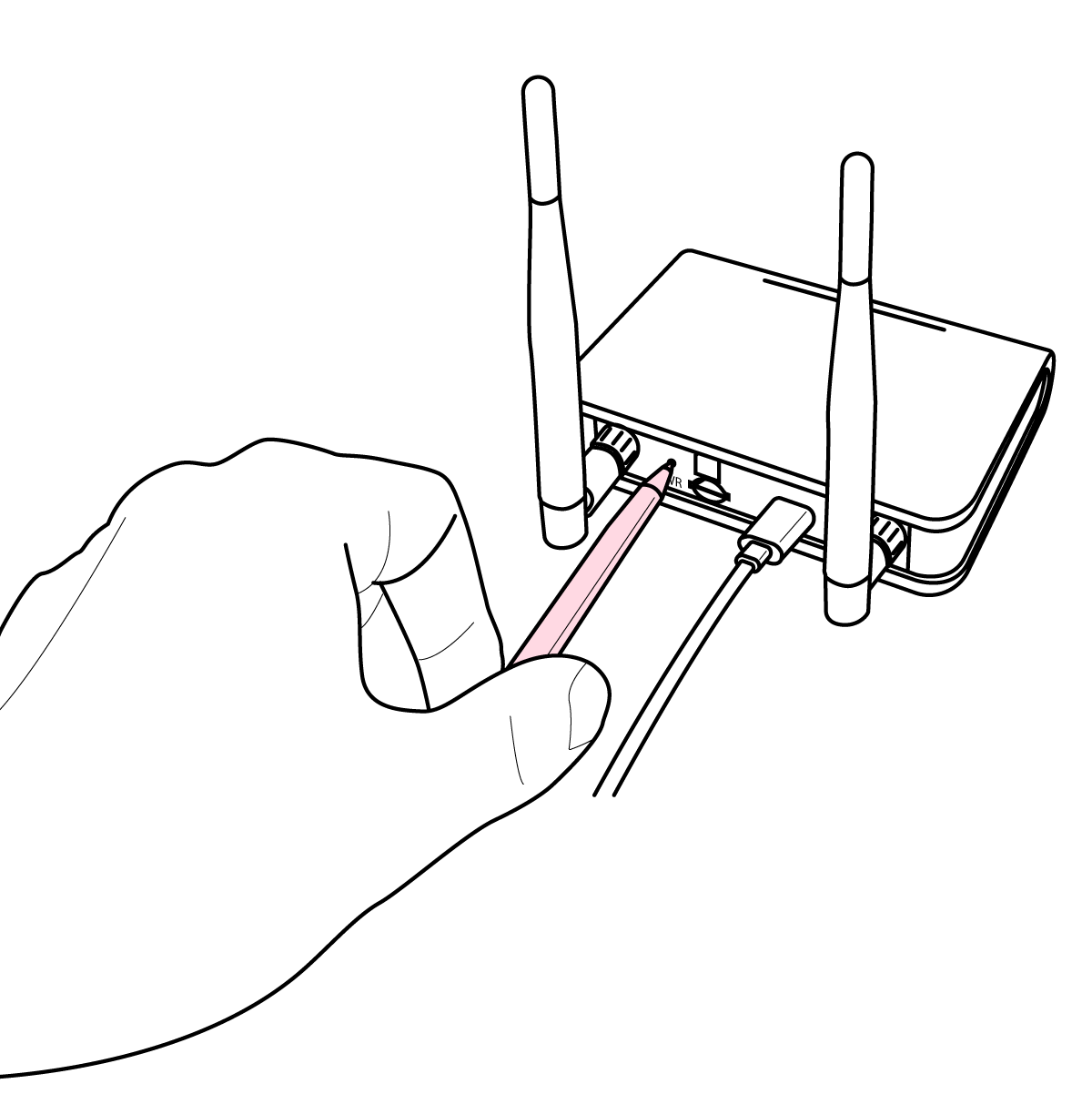
### Enable configuration mode on the gateway
Press the button located on the **back panel** of the gateway **twice**.
{% endstep %}
{% step %}
### Open the mobile application and go to *Nearby devices* mode
Open the mobile application and change the view to Nearby devices by selecting **Main menu** (three lines in the upper-left corner) → **Nearby devices**.
{% endstep %}
{% step %}
### Connect to the Gateway
Tap the Gateway in the list to connect, then enter its password. You can find the password on the label attached to the bottom of the device.
{% endstep %}
{% step %}
### Display the *Status* tab
Tap the **three dots** in the upper-left corner of the app and select ***Status***. The Status screen displays detailed information about the gateway, including:
* **Serial Number:** Unique identifier for the gateway.
* **Software Version:** Current version of the gateway’s software.
* **Last Communication:** Date and time of the gateway’s most recent communication with the server.
* **Communication Status:** Outcome of the last attempt to communicate with the server:
* **Success:** Communication was successful.
* **Server Connection Error:** The gateway was unable to connect to the server.
* **Communication Issue Indicators:** Specific issues preventing communication, such as:
* DNS error,
* invalid NTP address,
* NTP connection error,
* NTP invalid time received,
* server invalid address,
* server connection error,
* server unknown error.
* **Registration Status:** Current network registration state of the gateway:
* **Registered (Home/Roaming):** The gateway is registered on a home or roaming network.
* **Not Registered:** The gateway is not registered on any network.
* **Searching:** The gateway is searching for a network.
* **Registration Denied:** The selected network does not permit registration.
* **IMEI:** IMEI number of the LTE module in the gateway.
* **ICCID:** ID of the SIM card used by the gateway.
* **PLMN:** PLMN code of the network the gateway is connected to.
* **Signal Quality Parameters:**
* **RSSI:** Received Signal Strength Indicator.
* **RSRP:** Reference Signal Received Power.
* **SINR:** Signal-to-Interference-plus-Noise Ratio.
* **RSRQ:** Reference Signal Received Quality.
{% endstep %}
{% endstepper %}
## LED indicators
The Efento Gateway is equipped with four LEDs that provide visual feedback about the device’s status. These LED indicators help you monitor the gateway’s operation and identify issues quickly.
The meaning of each LED color and blinking pattern is described below:
| **Blue – quickly blinking** | The gateway is connected to the mobile app and ready for configuration. |
| ---------------------------------------------------------------- | -------------------------------------------------------------------------------------- |
| **Blue – slowly blinking** | The gateway is searching for an LTE signal and initiating communication. |
| **Blue – constant** | The gateway is connected to an LTE network. |
| **Orange – quickly blinking** | The gateway is in configuration mode and waiting for a connection with the mobile app. |
| **Orange – slowly blinking** | No logger is within range of the gateway. |
| **Orange – single blink** | The gateway button has been pressed. |
| **Green – blinking** | The gateway is communicating with the server. |
| **Green – constant** | Communication with the server was successful. |
| **Red – slowly blinking** | Low battery level (only when USB power is not connected). |
| **Red – constant** | An error has occurred. Contact support at [help.efento.io](https://help.efento.io). |
| **All LEDs blinking sequentially** | The device is powering off, resetting to factory settings, or clearing memory. |
| **All LEDs flashing simultaneously** | Critical error. Contact support at [help.efento.io](https://help.efento.io). |
---
# Agent Instructions
This documentation is published with GitBook. GitBook is the documentation platform designed so that both humans and AI agents can read, navigate, and reason over technical content effectively. Learn more at gitbook.com.
## Querying This Documentation
If you need additional information that is not directly available in this page, you can query the documentation dynamically by asking a question.
Perform an HTTP GET request on the current page URL with the `ask` query parameter, and the optional `goal` query parameter:
```
GET https://docs.efento.io/efento-gateways/lte-gateway/troubleshooting.md?ask=&goal=
```
`ask` is the immediate question: it should be specific, self-contained, and written in natural language.
`goal` is optional and describes the broader end goal you are ultimately trying to accomplish on behalf of the user. GitBook uses it to tailor the answer towards what is most useful for that goal.
The response will contain a direct answer to the question and relevant excerpts and sources from the documentation.
Use this mechanism when the answer is not explicitly present in the current page, you need clarification or additional context, or you want to retrieve related documentation sections.