> For the complete documentation index, see [llms.txt](https://docs.efento.io/llms.txt). Markdown versions of documentation pages are available by appending `.md` to page URLs; this page is available as [Markdown](https://docs.efento.io/nb-iot-loggers/device-settings/rules.md).
# Rules
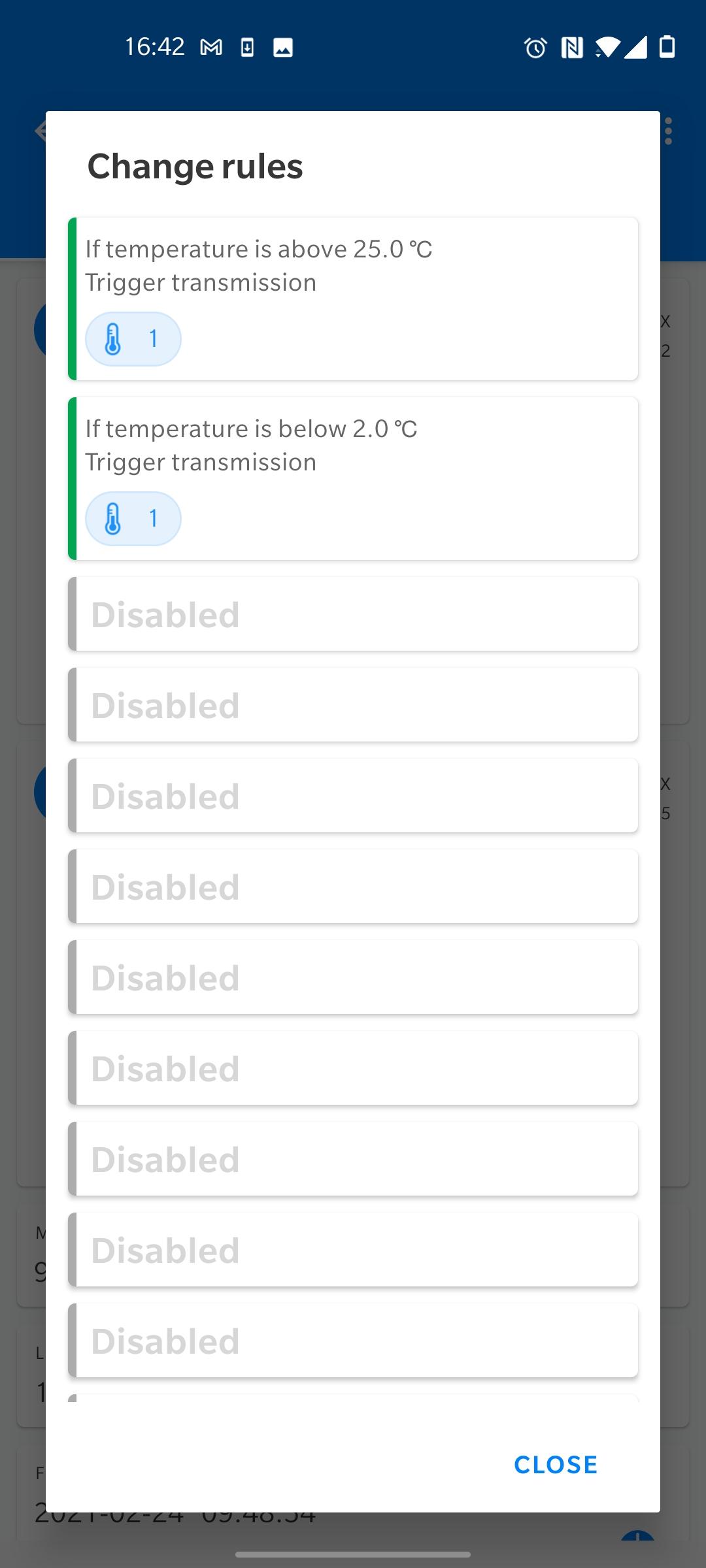
Users can set up to twelve edge logic rules on the device. Each rule is an “if **condition** is met, trigger an **action**” statement. Moreover, it is possible to add some mathematical operations to the conditions and build statements like “If the average value of the last five measurements is over...”. Rules are used to limit the number of transmissions done by a device and increase the battery life time.
## Conditions
Available conditions:
* **Above threshold** - if a measurement taken by the logger is higher than the threshold value, the transmission to the server will be triggered. It is possible to set hysteresis for this type of condition
* **Below threshold** - if a measurement taken by the logger is lower than the threshold value, the transmission to the server will be triggered. It is possible to set hysteresis for this type of condition
* **Differential threshold** - if the absolute value of the difference between the current measurement and the last measurement sent to the server, the transmission to the server will be triggered
* **On measurement**- If the measurement is performed a certain number of times, the transmission will be triggered. If the Measurement sending interval is set to "1", the transmission will be triggered after each measurement. **The measurement period cannot be less than 60s**.
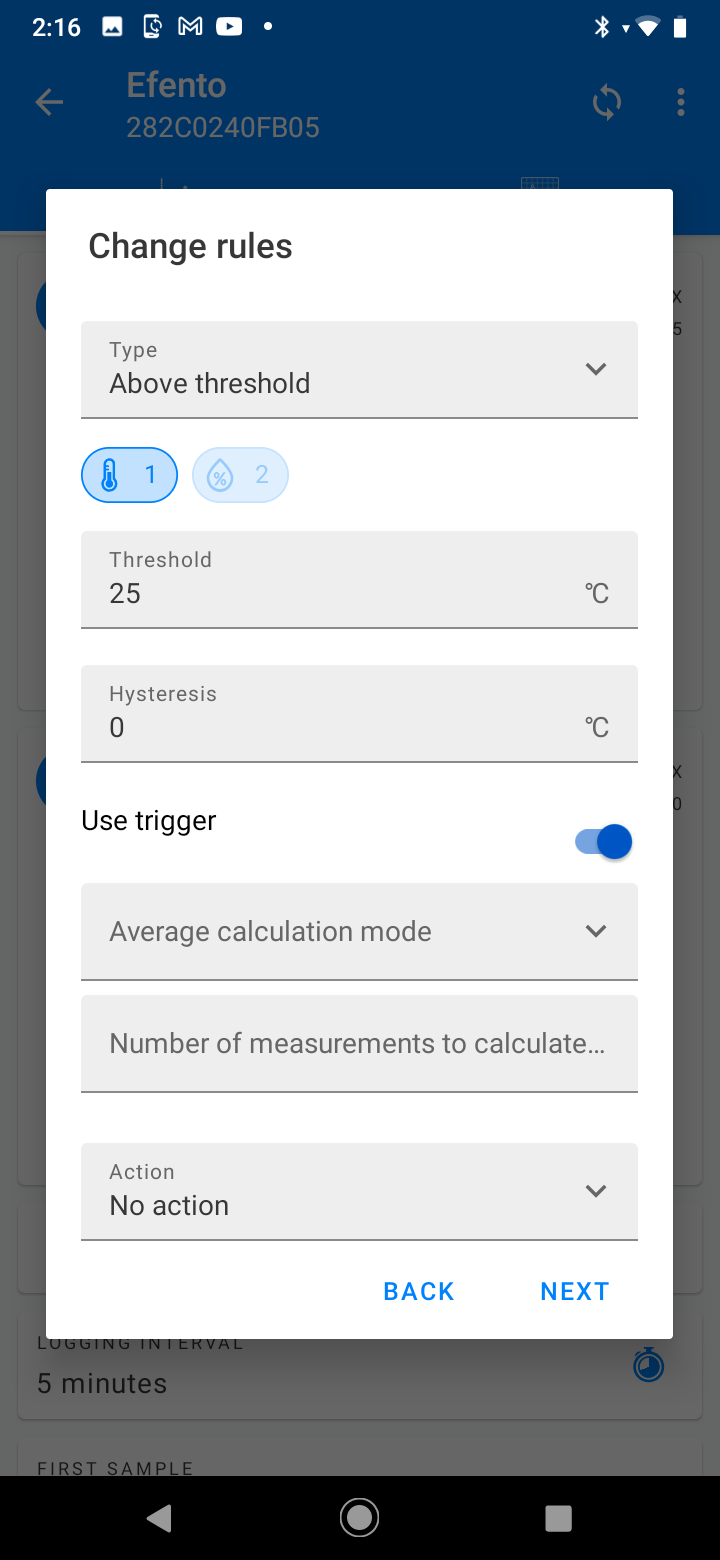
Users can also set the logger to calculate the average value out of a few measurements and compare this value to the threshold or analyse a number of consecutive measurements and compare them against the threshold. These features are used to reduce the effect of measurement fluctuation. For example, a user can set the logger to compute the average value of five temperature measurements, and check if the difference between the last sent measurement and the average value is larger than 0,5 C.
## Taking multiple measurements into the account
The device can take into the account multiple measurements when checking the condition:
* **Moving average mode** - device calculates the average value out of the last N samples. If there is a new measurement, it is taken to the average value calculation instead of the oldest one. Users can define how many measurements should be taken into the account when calculating the average value. For instance, if the user sets the device to calculate the average value from the last three samples, the device will calculate the average value from samples N-2, N-1 and N. Once a new measurement is taken, the average value will be calculated from samples N-1, N, N+1.
* **Window mode** - device calculates the average value out of all samples in the window size. The window ‘moves’ once the device has taken a number of measurements equal to the window size. Users can define how many measurements should be taken into the account when calculating the average value. For instance, if the user set the device to calculate the average value from the last three samples, the device will calculate the average value from samples N-2, N-1 and N. The new average value will be calculated as soon as the device has taken three new measurements (N+1, N+2, N+3).
* **Consecutive measurements** - device checks, if the set number of consecutive measurements meet the rule’s condition (e.g. if the number of the consecutive measurements is set to N, the device compares consecutive measurements against the set threshold and the action is triggered only, if N consecutive measurements meet the condition).
## Hysteresis
Hysteresis allows to filter out small fluctuations in order to eliminate a large number of data transmissions, if the measurements taken by the sensors are close to the threshold value. Hysteresis value defines the range above and below the threshold value that are still acceptable and won’t trigger the transmission.

## Actions
It is possible to set two types of actions:
* Trigger transmission - if a condition is met, the device will immediately trigger the transmission to the server
* No action - no action will be taken. This setting is used when building more complex logical rules, which combine two basic rules. E.g. “If Condition 1 and Condition 2 are met, trigger the transmission” (described in the further part of the user manual).
## Setting up a rule
In order to create a new rule:
1. Connect to the logger, tap on the three dots in the upper right corner -> “Power user” -> “Rules”
2. Select one of the rules slots. All slots are treated equally, so it does not matter to which slot you assign the new rule. Each time a device takes a measurement, it checks if any of the rules is violated.
3. Select the condition type, channel (if a device measures e.g. temperature and humidity you can set the rule for one of the channels), threshold value, hysteresis, average mode. This parameters define the rule’s conditions
4. Set the action type and save the changes

If you want to remove a rule, tap on it, set the Condition to “Disabled” and save the settings.
## Logical rules
Logical rules allow creating more complex rules on the sensor. For instance, it is possible to create a rule saying: “If temperature is over 25°C AND humidity is over 50% RH, trigger the transmission to the server”. Logical rules allow building logic using three logical operators: AND, OR, NOT.
In order to create a logical rule, you need to create at least one standard rule, which will be combined in the newly created logical rule.
1. Connect to the logger, tap on the three dots in the upper right corner -> “Power user” -> “Rules”
2. Select one of the rules slots, and create a new rule of “Logical” type
3. Select the condition type:
4. All rules are met - the action will be triggered, if both conditions are met (AND)
5. At least one of the rules is met - the action will be triggered, if any condition is met (OR)
6. Set activation and / or deactivation delays - the action will be triggered, if the condition is met for the set amount of time (e.g. if the activation delay is set to 30 minutes, the measurements must exceed the threshold and stay over it for 30 minutes to trigger the action). If the action should be triggered immediately (once the measurement exceeds the threshold) set the activation delay to “0”.
7. Set the action type and save the changes

When creating a logical rule, it is possible to negate (NOT) individual rules by pressing the exclamation mark (!) next to them. Example: original alarm rule’s condition: “If the humidity is over 35% RH” negated alarm rule” “If the humidity is NOT over 35%”
If you want to remove a logical rule, tap on it, set the Condition to “Disabled” and save the settings.
## Calendars
Calendars allow enabling rules (both standard and logical rules) only on the selected days and times. This allows users to create rules like “If temperature is over 25°C on Mondays between 8 AM and 5 PM, trigger the transmission to the server” or “If temperature is over 25°C AND humidity is over 50% RH on Saturdays and Sundays, trigger the transmission to the server”. Users can set up up to six calendars and assign rules to them. Note, that more than one rule can be assigned to a single calendar.
To create a rules calendar:
{% stepper %}
{% step %}
#### Create at least one alarm rule (standard or logical)
{% endstep %}
{% step %}
#### From the rules menu select “Calendar” and create a new Weekly calendar on an empty slot

{% endstep %}
{% step %}
#### Define days and times on which the calendar is active (you can select multiple week days)
{% endstep %}
{% step %}
#### Assign the rules to the calendar

{% endstep %}
{% endstepper %}
If you want to remove a calendar, tap on it, set the Condition to “Disabled” and save the settings.
---
# Agent Instructions
This documentation is published with GitBook. GitBook is the documentation platform designed so that both humans and AI agents can read, navigate, and reason over technical content effectively. Learn more at gitbook.com.
## Querying This Documentation
If you need additional information that is not directly available in this page, you can query the documentation by asking a question.
Perform an HTTP GET request on the following URL with the `ask` and `goal` query parameters:
```
GET https://docs.efento.io/nb-iot-loggers/device-settings/rules.md?ask=&goal=
```
`ask` is the immediate question: it should be specific, self-contained, and written in natural language.
`goal` is what the user is ultimately trying to achieve, the reason they need the answer. Sharing it helps GitBook give you a better, more relevant answer. A goal is most helpful when it describes the outcome the user wants rather than restating the question. For example, with `ask=how do I create an API token`, a goal like `automate deployments from our CI pipeline` lets GitBook tailor the answer to that use case.
The response will contain a direct answer to the question and relevant excerpts and sources from the documentation.
Use this mechanism when the answer is not explicitly present in the current page, you need clarification or additional context, or you want to retrieve related documentation sections.