> For the complete documentation index, see [llms.txt](https://docs.efento.io/llms.txt). Markdown versions of documentation pages are available by appending `.md` to page URLs; this page is available as [Markdown](https://docs.efento.io/efento-ble-loggers/using-loggers/standalone-mode/logger-settings.md).
# Logger settings
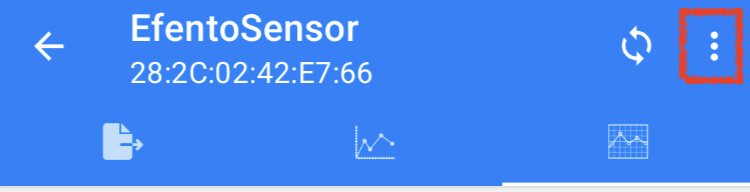
To access the logger’s settings, connect to a logger and tap three dots in the upper-right corner.
The list of the settings depend on the logger type. Available options include:
## **Logger name**
Enter a new name for the selected logger. The device name will be updated and visible on every phone or tablet that connects to the logger.
## **Measurement period / Clear logger memory**
Use the sliders to select a new measurement period. The application automatically calculates how many measurements will fit in the logger’s memory based on the selected period; this information is shown at the bottom of the screen. Tap **Save** to apply the new measurement period. To clear the logger’s memory, select the **Clear Memory** checkbox.
* **Default measurement period:** 5 minutes
* **Physical or chemical sensors** (e.g., temperature, humidity) record measurements at the selected interval.
* **Pulse counters** count the number of pulses within each measurement interval (e.g., a 60-minute period counts pulses occurring during that hour).
## **Encryption**
Communication between Efento loggers and mobile devices or Efento Gateways can be secured using AES-128 encryption. Enabling encryption secures the data transmitted by the logger over the Bluetooth Low Energy (BLE) interface. Encrypted data can only be decrypted by a device that has the correct encryption key. This ensures that only authorized personnel can access the logger’s measurements; users without the key will not be able to read the data.
When logger communication is encrypted:
* **Authorized devices** (with the encryption key) can read the data (right).
* **Unauthorized devices** (without the encryption key) cannot access the measurements (left).
#### Setting the encryption key
1. In the settings menu select **Advanced** → **Turn encryption on**.
2. Enter the encryption key twice and make sure to record it, as it will be needed on any device that accesses the logger data.
Once enabled, all logger communication is encrypted. You must [add the encryption key in the Efento mobile application](/efento-ble-loggers/using-loggers/standalone-mode/mobile-app-settings.md) to view the logger’s data. If you use loggers with Efento Gateway, the same encryption key must be added in the gateway configuration ([Ethernet Gateway](https://docs.efento.io/efento-gateways/) / [LTE Gateway](/efento-gateways/lte-gateway/other-settings.md#encryption-keys)).
To turn off encryption from the settings menu select **Advanced** → **Turn encryption off**.
#### Notes on using encryption
* When connecting to an encrypted logger for the first time, the application will prompt you to enter the encryption key.
* Once entered, the application stores the key, allowing future access without re-entering it.
* The Efento mobile application supports up to [**five default encryption keys**](/efento-ble-loggers/using-loggers/standalone-mode/mobile-app-settings.md). If a logger is encrypted with any of the added keys, the application will automatically decrypt its data.
## Restore default settings
If you need to reset a logger to its factory defaults, follow these steps:
1. From the settings menu select **Advanced** → **Restore Default Settings**.
2. Confirm the action when prompted.
Restoring default settings will:
* Reset the measurement period to its factory value
* Clear any custom device name
* Remove configured encryption settings
* Clear the logger’s memory
{% hint style="info" %}
After restoring default settings, it is recommended to reconfigure the logger, including setting the measurement period, time, and any required encryption keys.
{% endhint %}
---
# Agent Instructions
This documentation is published with GitBook. GitBook is the documentation platform designed so that both humans and AI agents can read, navigate, and reason over technical content effectively. Learn more at gitbook.com.
## Querying This Documentation
If you need additional information that is not directly available in this page, you can query the documentation by asking a question.
Perform an HTTP GET request on the following URL with the `ask` and `goal` query parameters:
```
GET https://docs.efento.io/efento-ble-loggers/using-loggers/standalone-mode/logger-settings.md?ask=&goal=
```
`ask` is the immediate question: it should be specific, self-contained, and written in natural language.
`goal` is what the user is ultimately trying to achieve, the reason they need the answer. Sharing it helps GitBook give you a better, more relevant answer. A goal is most helpful when it describes the outcome the user wants rather than restating the question. For example, with `ask=how do I create an API token`, a goal like `automate deployments from our CI pipeline` lets GitBook tailor the answer to that use case.
The response will contain a direct answer to the question and relevant excerpts and sources from the documentation.
Use this mechanism when the answer is not explicitly present in the current page, you need clarification or additional context, or you want to retrieve related documentation sections.